Here's how to use Parsons Code Lab as a teacher
Navbar
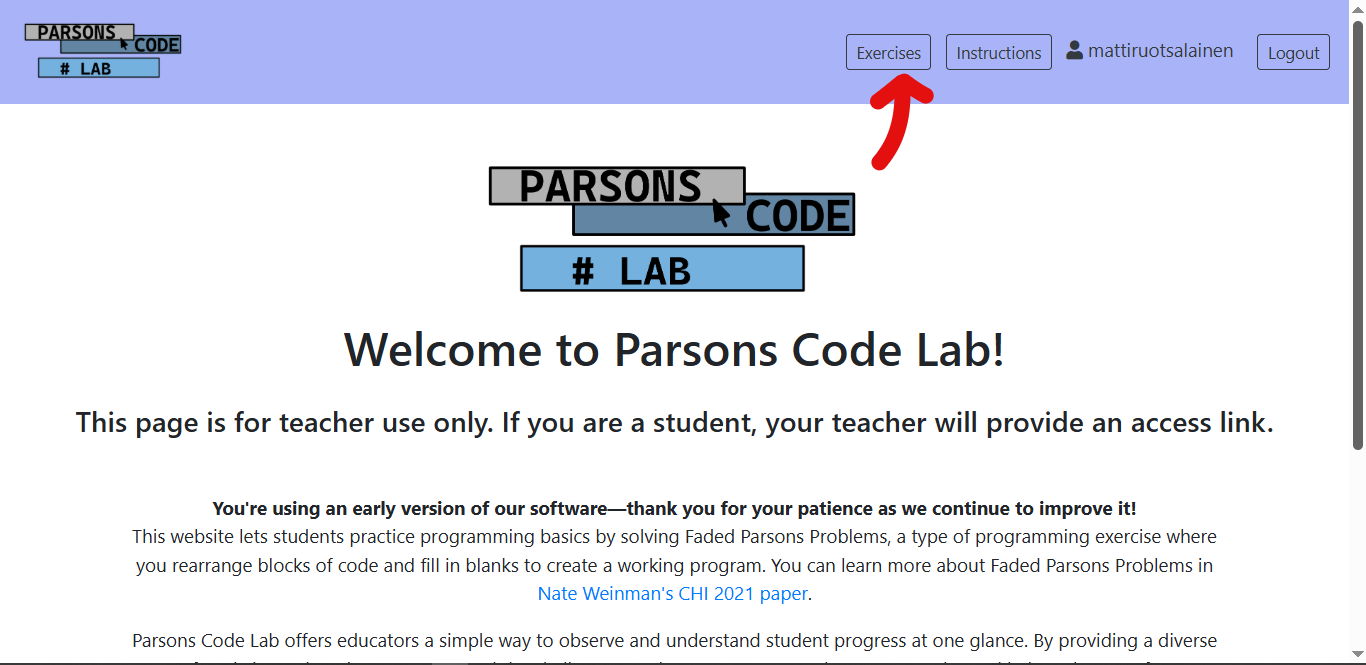
Login, Register, Instructions, Statistics, Exercises and Logout buttons as well as the login form can be found on the navigation bar at the top of the page. By clicking on the Parsons Code Lab logo the teacher is able to return to the homepage.
Registration
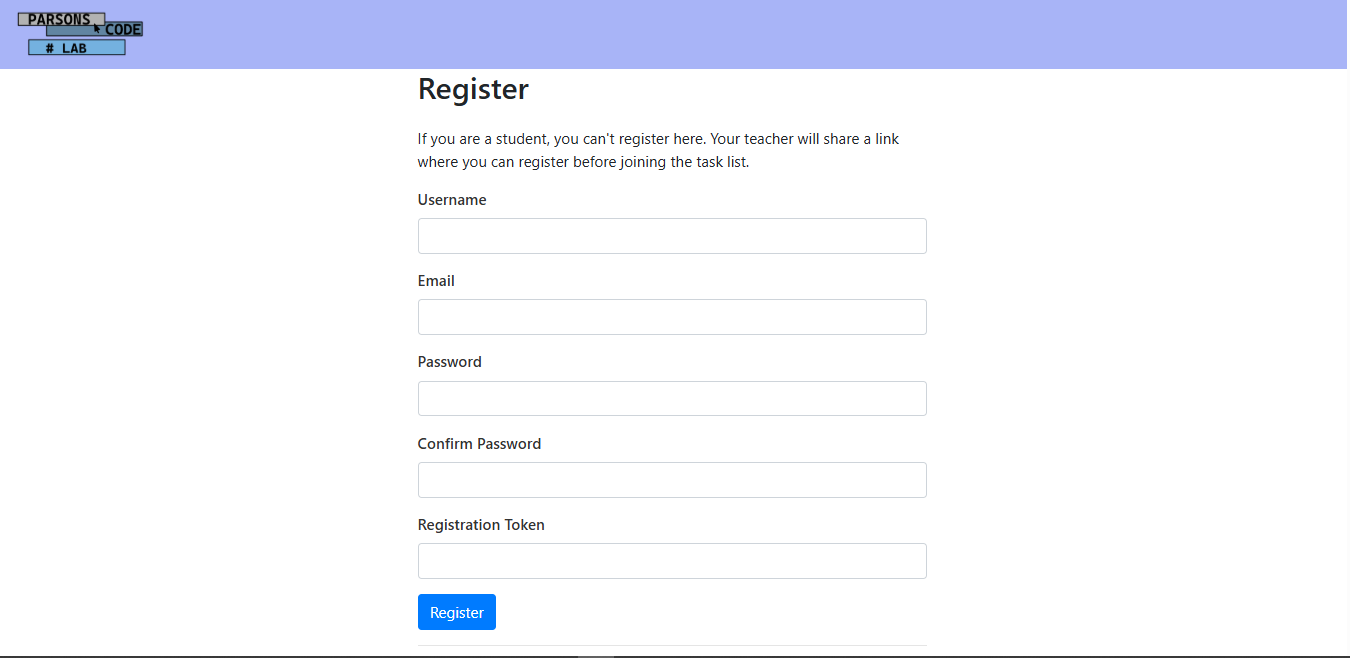
To register your Parsons Code Lab account, please enter your username, email and password. You will also need to enter a registration token.
Task List Selector
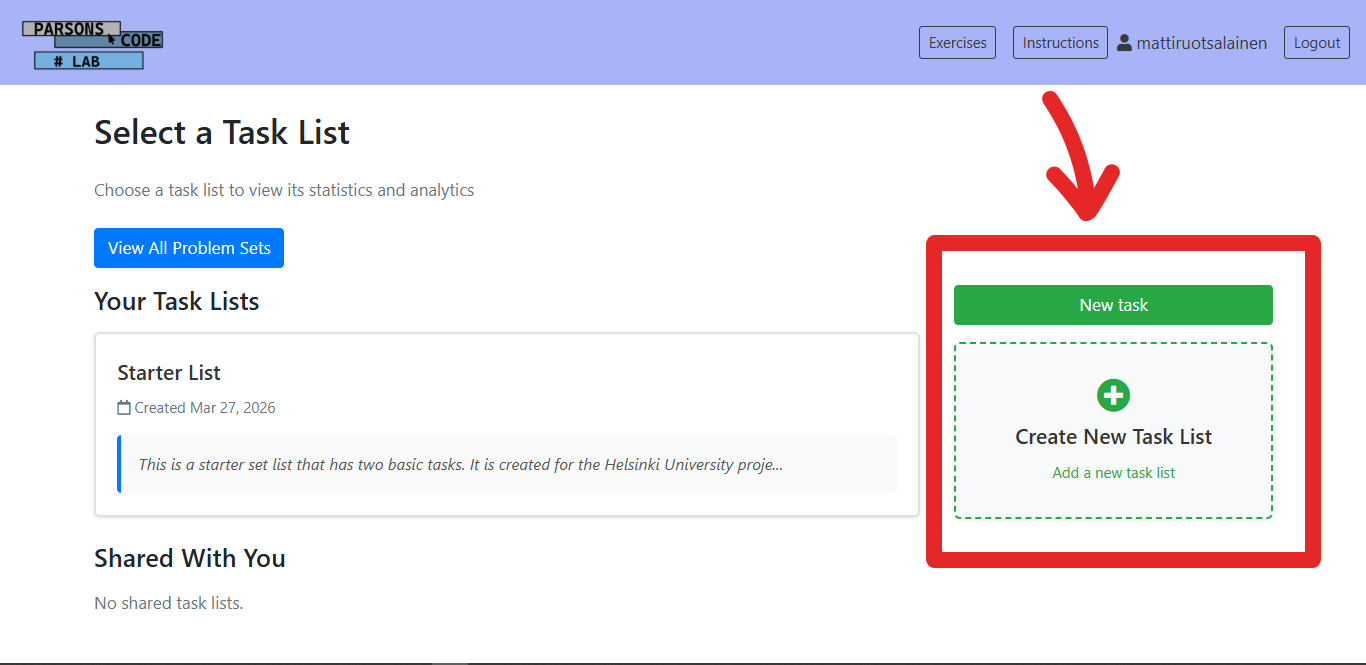
After registering and logging in successfully, the teacher will be able to see all available task lists. The teacher is able to create a new task list by clicking on "Create New Task List". By clicking on a task list the teacher is able to see more information such as the link for students, creation date, added tasks and students. The teacher can also share a task list with other teachers. Added teachers will have viewing rights to the task list.
Creating a task list
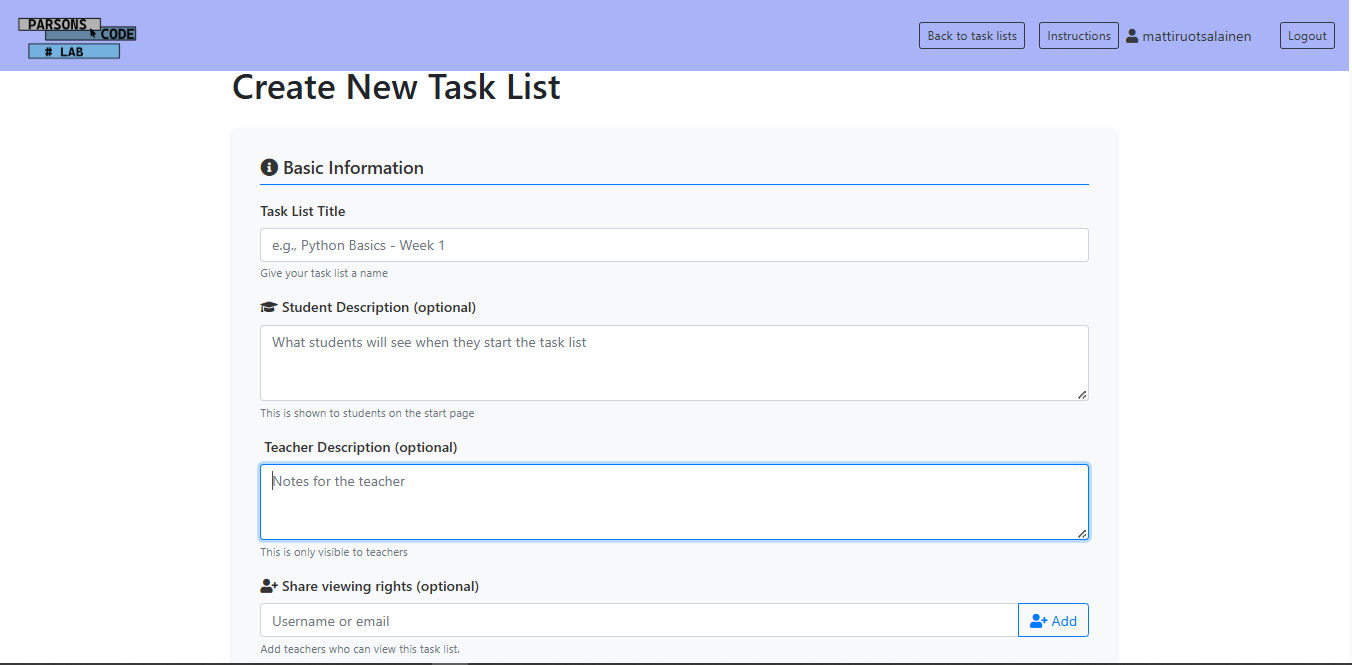
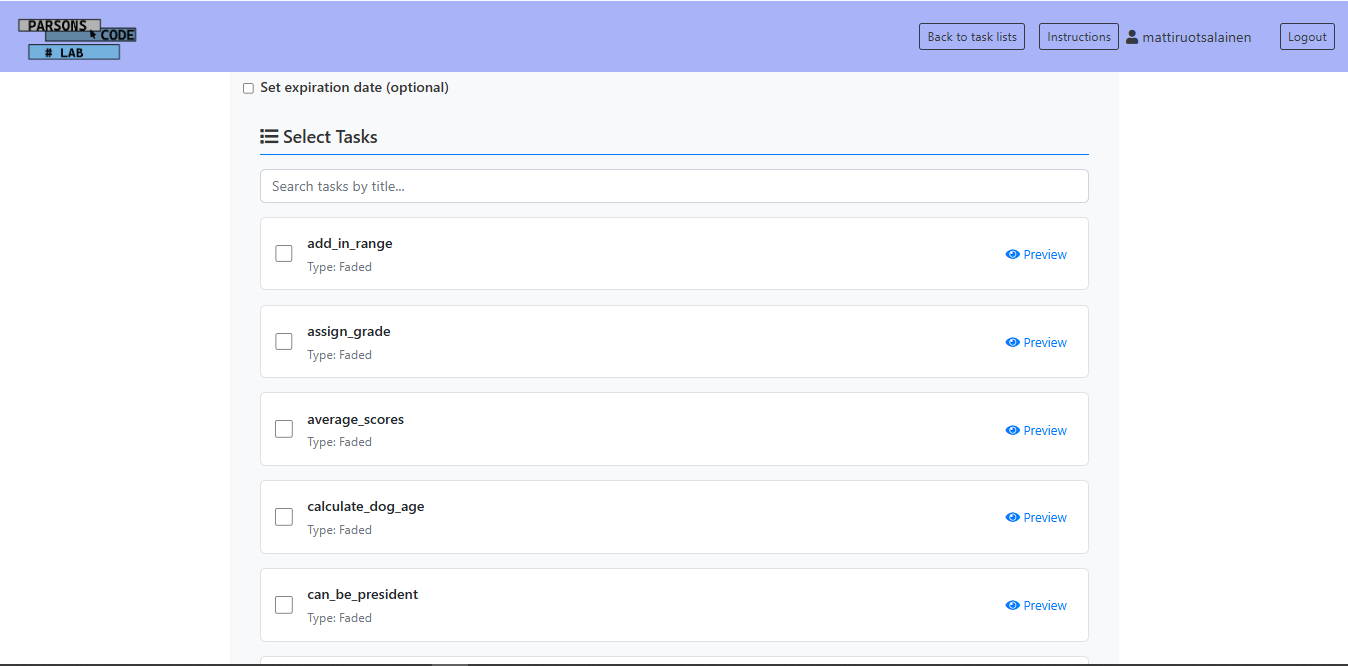
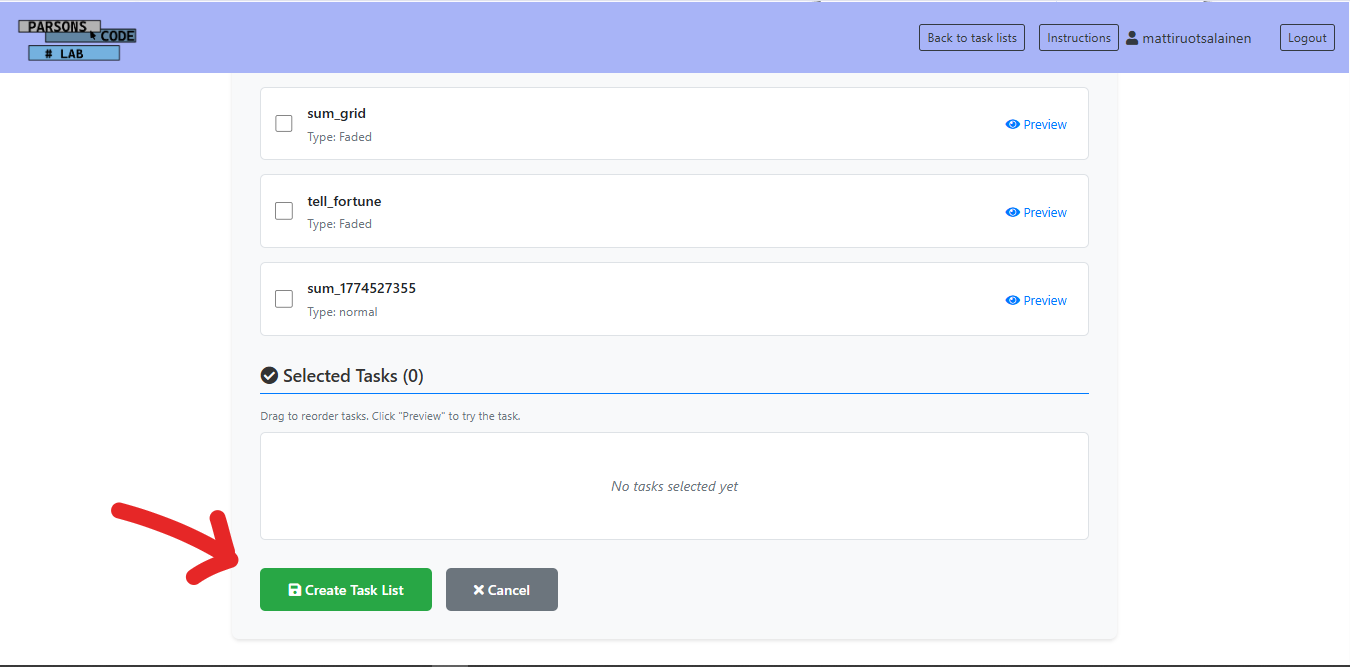
After clicking on "Create New Task List", the teacher is able to enter basic information of their task list such as the title, optional descriptions for students and teachers, other teachers' email addresses or usernames to share viewing rights with them as well as an optional expiration date. The teacher is also able to share viewing rights to a task list later on the task list's page. Most importantly,the teacher is able to select tasks they want to add to their task list as well as preview them beforehand. After creating a task list the teacher will be redirected to the Task List Selector page. Additional information as well as exercise analytics can be found by clicking on a specific task list.
Sharing a task list with students and receiving task data
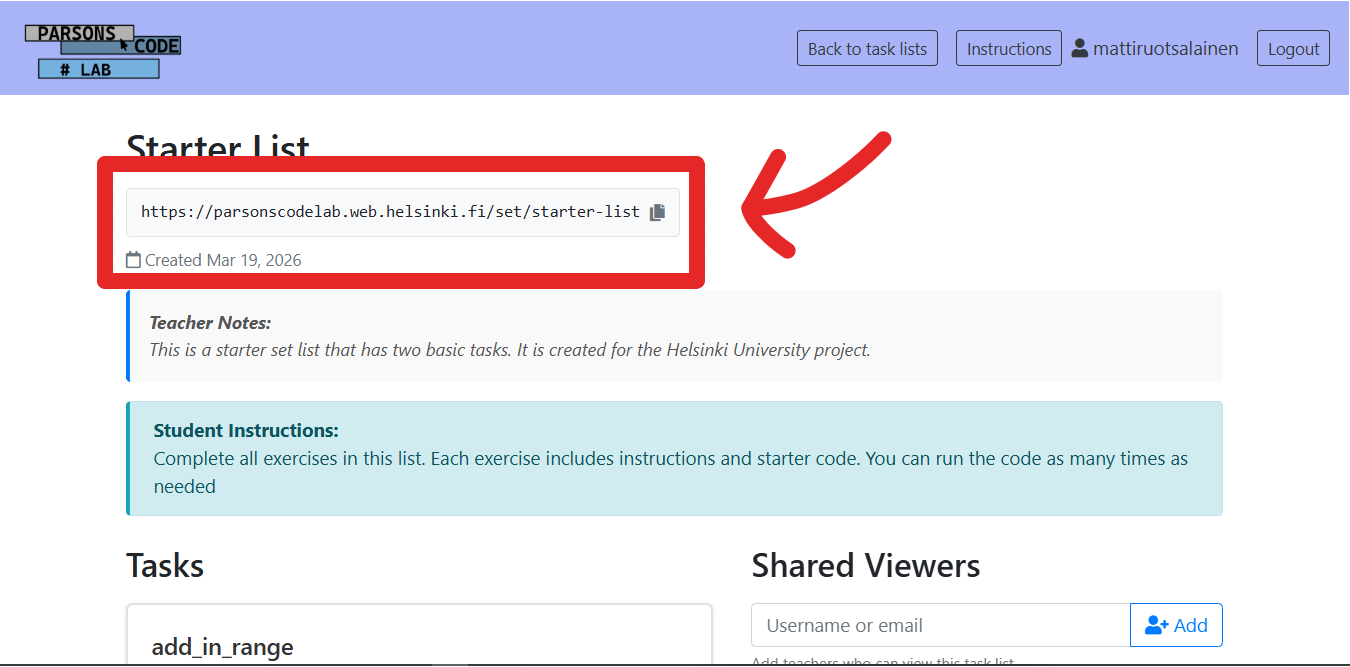
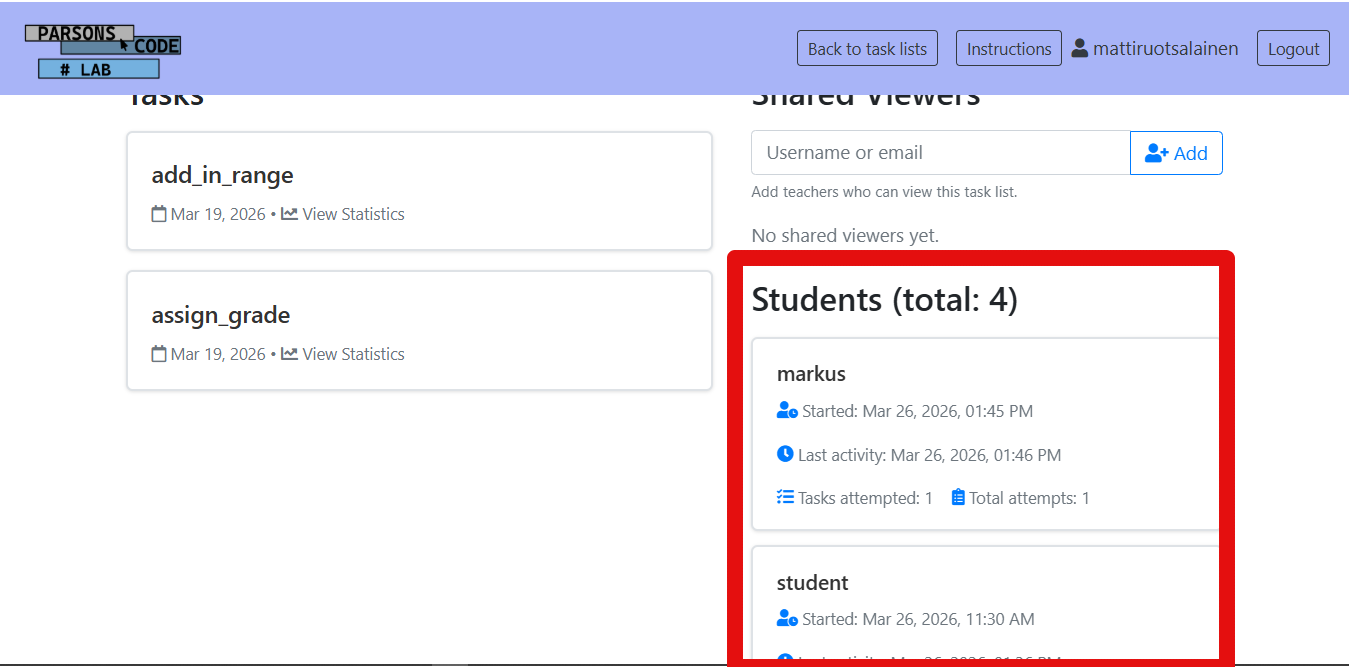
Task lists become available to students via a unique link that can be found on the task list page right below the task list title. The link can be copied by clicking on the button on the right side of the link. Once the students have access to the task list, the teacher will be able to see their udernames, joining date, last activity date, the amount of attempted tasks and the total amount of task attempts. More statistics are available by clicking on a student.
Student statistics
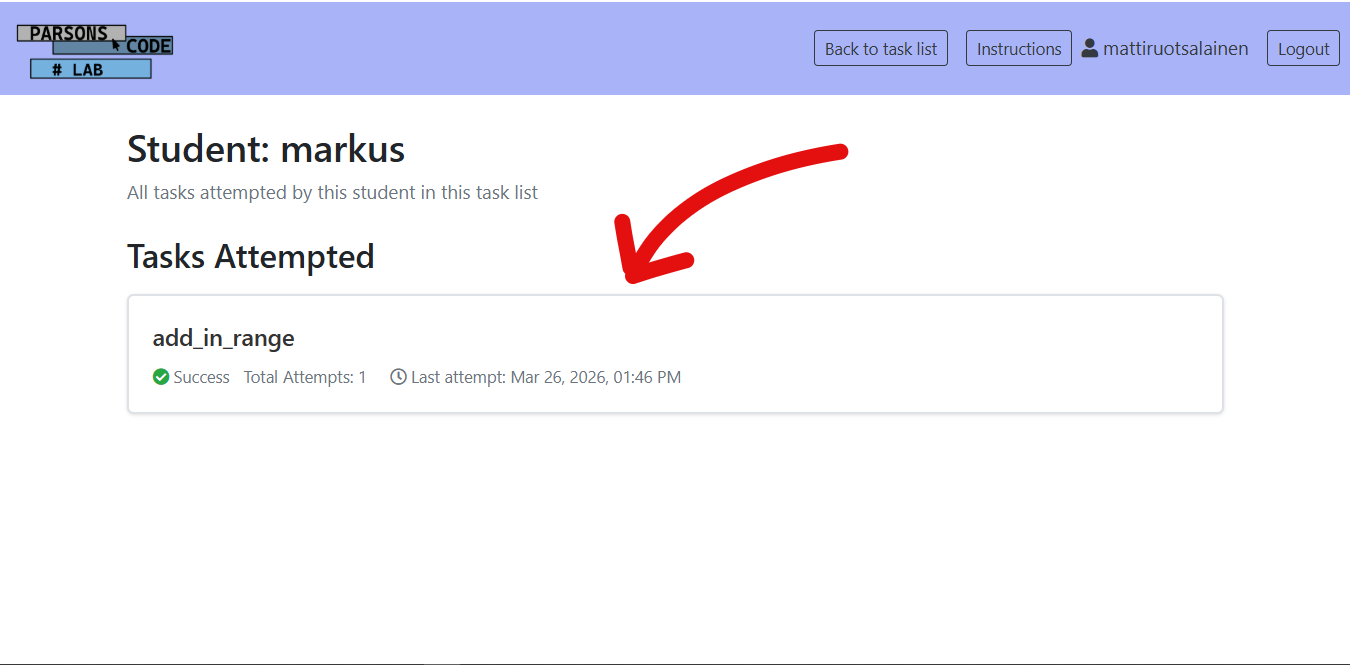
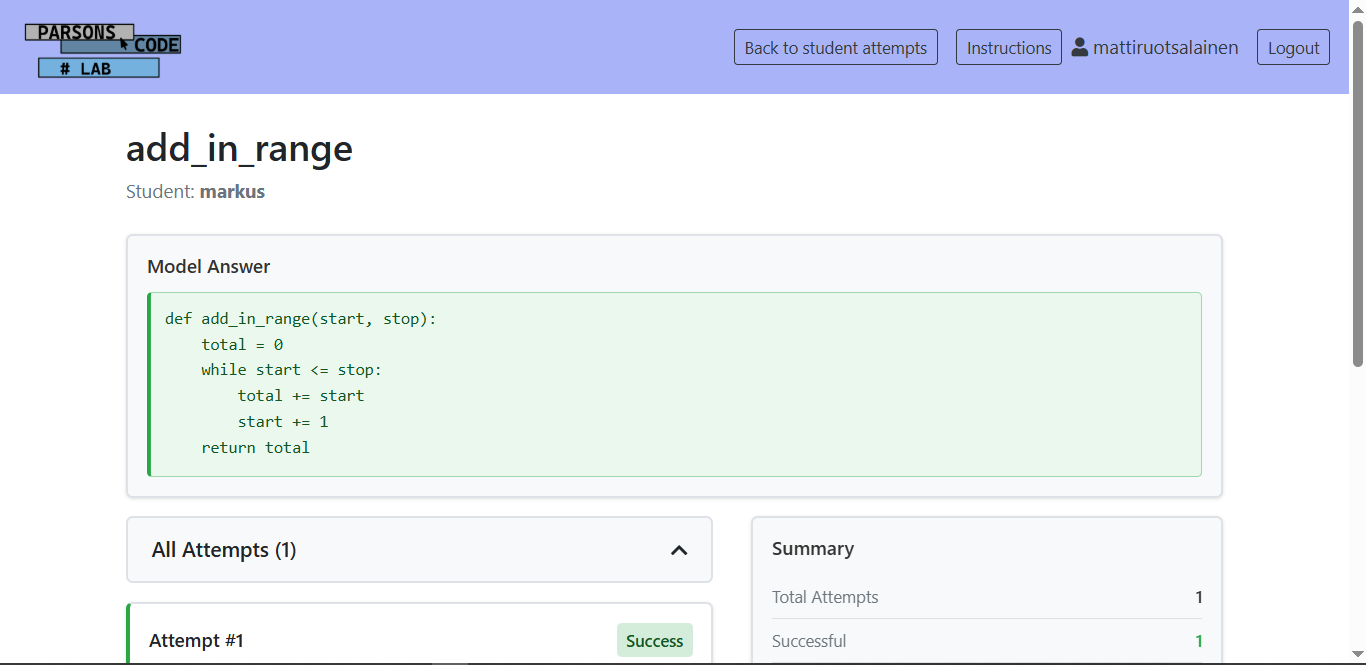
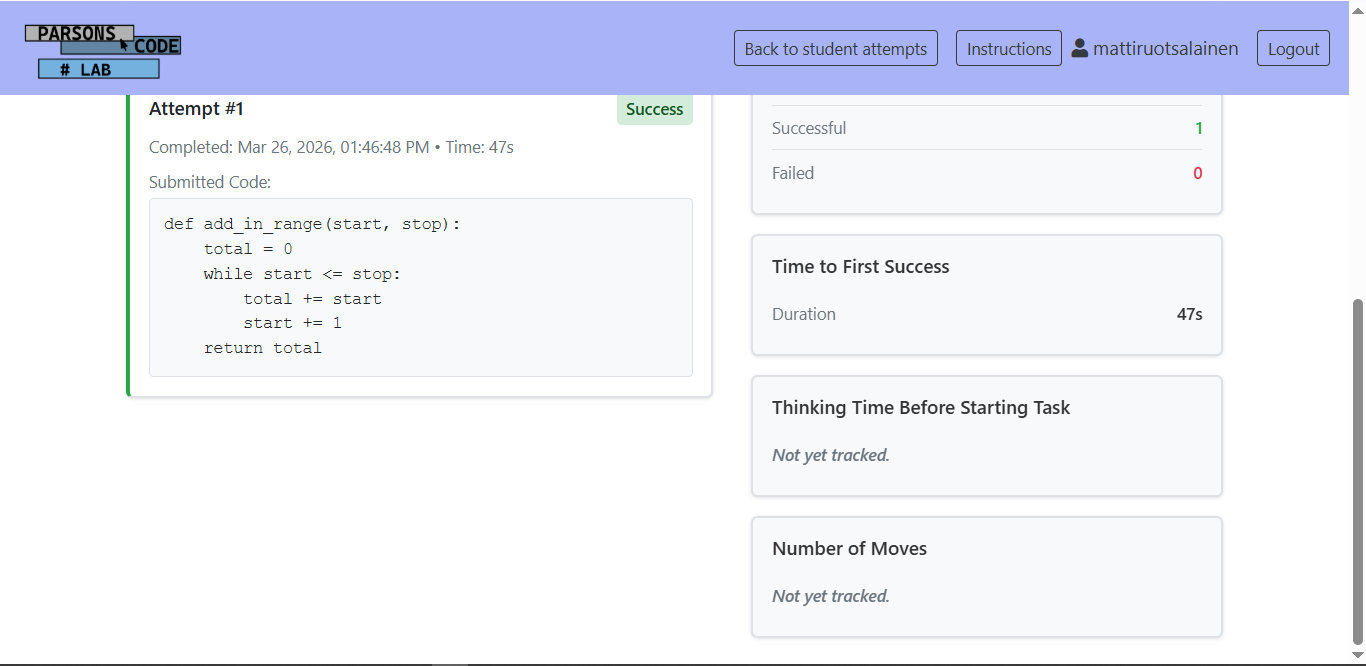
After clicking on a student, the teacher will be redirected to their stats page. Here the teacher is able to see all the tasks attempted by the student, their completion status, total amount of attempts per task as well as the time of last attempt. By clicking on a task on this page the teacher will be able to see all of the student's attempts, a summary containing the total amount of task attempts as well as the amounts of successful and failed attempts separately. Additional statistics contain the task's model solution, Time to First Fail, Thinking Time Before Starting Task and the Number of Moves made in the task.
Creating a new task
On the Task Lists page, right above "Create New Task List"-button, there is a "New task"-button that allows the teacher to add a new task to the system. After clicking on this button, the teacher will be redirected to Create a New Task page with two code editor views. The upper editor is for task code written in plain Python. The lower editor is for writing test cases for the abovementioned task. The teacher is able to use any Python test style they prefer for writing the task test cases. After writing bith the task code and the test cases, the teacher can go on to writing task instructions, task description and constructing the block solution byt clicking on the "Continue To Block Builder" button. Task draft can be cleared by clicking on the "Clear Drafts" button. After continuing to block builder, the teacher is also able to add their own custom blocks to the task, run the tests they have previously written. Finally, when the tests have been passed, the teacher can add their custom task to the global Exercise list.
Global Exercise List
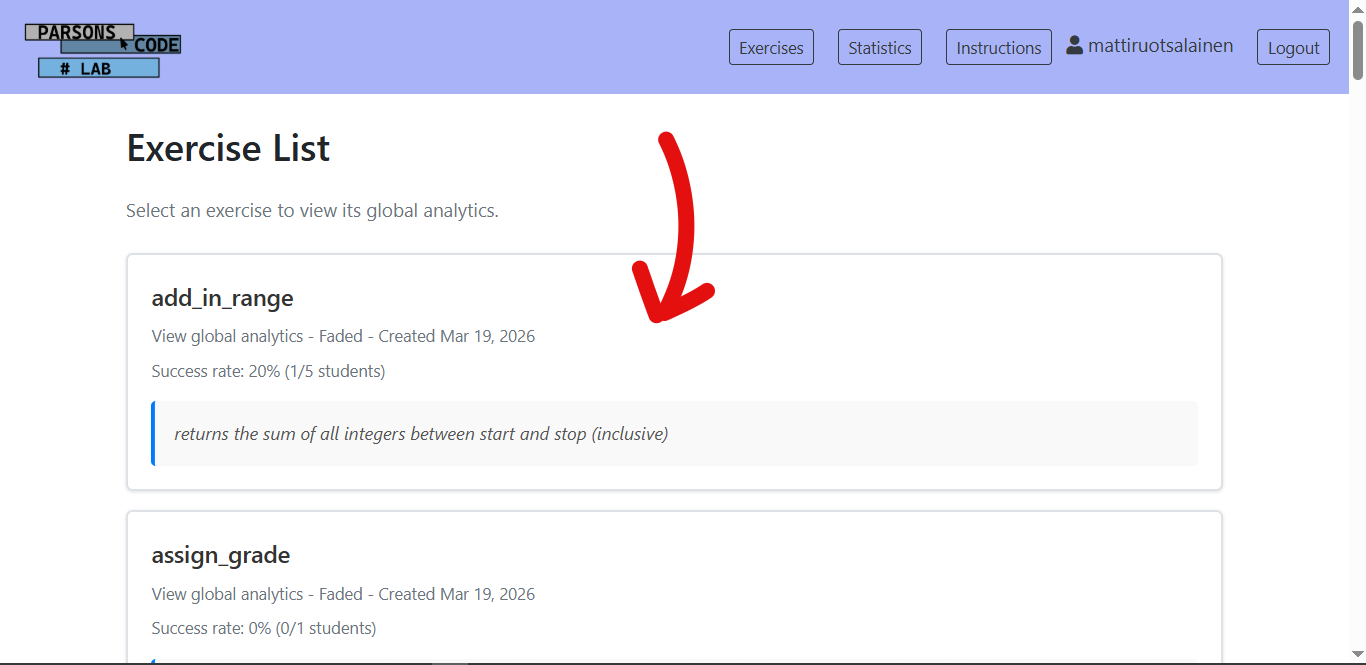
By clicking on "Exercises" button on the navbar, the teacher will be redirected to the global exercise list, where they'll be able to view global statistics of each existing task. On this page the teacher is able to view each task's creation date, success rate as well as a short description of each task's goal. After clicking on a specific task the teacher is able to view more exercise analytics. They contain the total number of attempts, the amount of students who have completed the task, the amount of students who attempted teh task and the average number of tries before success. Time related statistics include the average, minimum and maximum time to first fail and to first success as well as the average thinking time before starting a task. In addition to this, the average number of moves and most common mistakes and inputs as well as the model answer are also available on this page.